

Using Security Cameras Independently
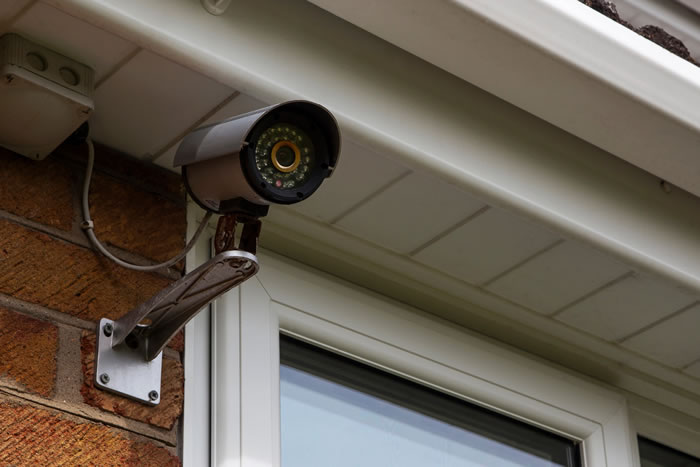
Unlocking New Possibilities: Using Our Cameras for Creative Projects
Think beyond security and safety – our cameras can be used for a wide range of creative projects. From monitoring animals in a zoo or sanctuary to live streaming events or capturing time-lapse footage of a construction project, our cameras are up to the task. With our Premium Series IP cameras, you can easily set up a standalone camera project to capture video or snapshots. This guide will help you get started.
What is an IP camera?
An IP camera, also known as a network camera or PoE camera, is a digital security camera that sends data over IP address-based computer networks. This technology allows IP cameras to transmit video, audio, and other data over a single network cable, simplifying installation and providing advanced features like digital control of camera settings, image enhancements, and integration with other devices.
Why use an IP camera as a standalone security camera?
IP cameras, better than HD security cameras over Coax, have small computer chips that significantly expand their capabilities. They can operate independently without a centralized recorder or integrate with other cameras and a network video recorder (NVR) to create a comprehensive security camera system. At CCTV Camera World, our IP cameras have internal web servers accessible via web browsers, mobile apps, and PC or Mac software, allowing for direct remote viewing without recurring cloud storage costs. Our professional network cameras, unlike cloud-based cameras from home consumer brands, function as standalone devices on a local network for sensitive applications, avoiding third-party servers.
For remote access, you can view, manage, and playback recorded footage over the Internet by adding the camera to the app or software. Our security cameras with SD cards have a microSD slot for internal storage, making them an economical choice for standalone surveillance. Depending on the storage capacity of the SD card, it can store a few days of video or several years of snapshots. For more details on recording snapshots, refer to our guide, How to Record Pictures and Snapshots on a Security Camera. Cost-conscious projects that do not require an NVR for long-term video storage can greatly benefit from standalone cameras.
IP Cameras in action
To provide an overview of the benefits of using an IP camera from CCTV Camera World, we prepared a quick introduction video that is available for you to watch below. The video shows how simple it is to use one of our network cameras in standalone mode. You can access a camera using either our free smartphone app or our PC/Mac client monitoring software. With our free smartphone app, you can access live and recorded video, or still snapshots.
Direct Streaming to YouTube and Twitch
Another potential use for a standalone surveillance camera is to stream a video feed over the web. With built-in RTMP streaming, some of our PoE cameras can stream directly to the most popular online streaming services. We recommend using Twitch because it is free and only requires a Twitch account. You can also use YouTube Live with a YouTube account, but it doesn’t perform as well as Twitch for continuous, long-term streaming. For more information, browse our selection of Live Streaming Cameras and check out our Live Streaming to Twitch and Live Streaming to YouTube guides.
How to setup a Standalone Security Camera
This guide will show you how to use a PoE IP camera purchased from CCTV Camera World as a standalone recording device. We break down the setup process into easy-to-follow steps:
- Accessing the camera
- Viewing an IP camera from a web browser
- Viewing an IP Camera from an iPhone or Android Phone
- How to set a recording schedule
- Viewing video from a PC or Mac
- Video playback using a PC or Mac
- Download video using a PC or Mac
Step 1. Powering a PoE Camera
There are multiple ways to power PoE cameras, all of which we cover in detail in our Three Ways to Connect an IP Camera article. The recommended method, which is also the simplest, is to use a PoE injector. A PoE injector is a device that powers a single PoE camera and requires two Ethernet cables to connect. You need to connect one cable to the camera and another to a computer or network router. We recommend using a PoE injector to power a single PoE camera for the following reasons:
- Simplicity in the type of cable being used.
- Troubleshooting the power source is easy.
Using a PoE Injector
Using a PoE (Power over Ethernet) injector is the easiest way to connect and provide power. A PoE injector allows you to power the camera from anywhere there is a 110V AC socket. Simply plug your PoE injector into a 110V AC wall socket using the power cord.
A PoE injector has two ports: a Power+Data port and a data port. A single Ethernet cable from the injector’s Power+Data (P+D/OUT) port to the camera will provide power and data connectivity. The Data/IN port is what connects to your network router or directly to a computer with a second network cable. You can use either CAT5E or CAT6 cables.
Step 2. Accessing the camera
Requirements
The following is a brief list of requirements for connecting to an IP camera:
- IP camera that you want to connect to
- PoE injector or PoE switch that is 802.3af/at compliant
- Two CAT5e or CAT6 network cables that are known to be good
- Network router
- Windows PC computer that is connected to the same router
If you have purchased a Chrome-compatible camera model and emailed our tech department to have it set to an IP address that is compatible with your network, you can use a Mac computer; otherwise, we recommend using a Windows computer for camera and software compatibility. To proceed to the next steps, it is important that the network camera is receiving power and connected to your local computer network. The power source must be a PoE injector or PoE switch that is 802.3af/at compliant. If this is all new to you, we suggest purchasing the PoE switch or injector from us to ensure compatibility.
Pre-configured from CCTV Camera World
Our technicians usually pre-configure IP cameras with an IP address, username, and password during shipping to streamline the setup process for customers. There should be a label on top of the camera box that states the IP address and login credentials for that camera. In some cases, check your email, as our technicians may send the information directly to you.
Step 3. Viewing an IP camera from a web browser
Using Microsoft Edge Internet Explorer Mode to get the most out of your IP camera
Microsoft Edge still has an Internet Explorer mode, making it the best web browser for accessing professional network cameras and systems over a local network or the Internet, despite its official death in June 2022. You can toggle or tweak numerous features of professional cameras with the built-in web server by logging into the product’s web server. By allowing the installation of plugins from the camera’s web server, Internet Explorer provides access to all the settings, live view, and playback features. The newer HTML5 interface, while convenient, sometimes does not support all of our cameras’ functions, like digital zoom or two-way audio. Installing the necessary plugins simplifies the process of logging into the camera and exploring the web interface. The video below demonstrates how to use Microsoft Edge’s Internet Explorer mode to access a network security camera.
Chrome, Firefox, and Edge browser support
Depending on the camera model and its firmware, it may support access from Chrome, Firefox, or Edge web browsers. They make it convenient to watch surveillance cameras through a web browser without installing a plugin, especially for non-professional users or those with limited administrative access to a computer in a corporate environment. For security reasons, Chrome, Edge, and Firefox do not allow additional plugins to install and require camera systems to use the HTML5 web player to display video, just like YouTube doesn’t need extensions to play videos. However, this comes at a sacrifice, as certain functions are unavailable through HTML5 due to limitations. To access all the features, you can always use Internet Explorer. Feel free to watch our demonstration video below that shows how simple it is to view our IP cameras using Google Chrome. You can also view any of our PoE cameras that support Chrome from a Mac, Ubuntu, or other Linux distro. Please be sure to check the product description of the camera to confirm what browsers it’s compatible with.